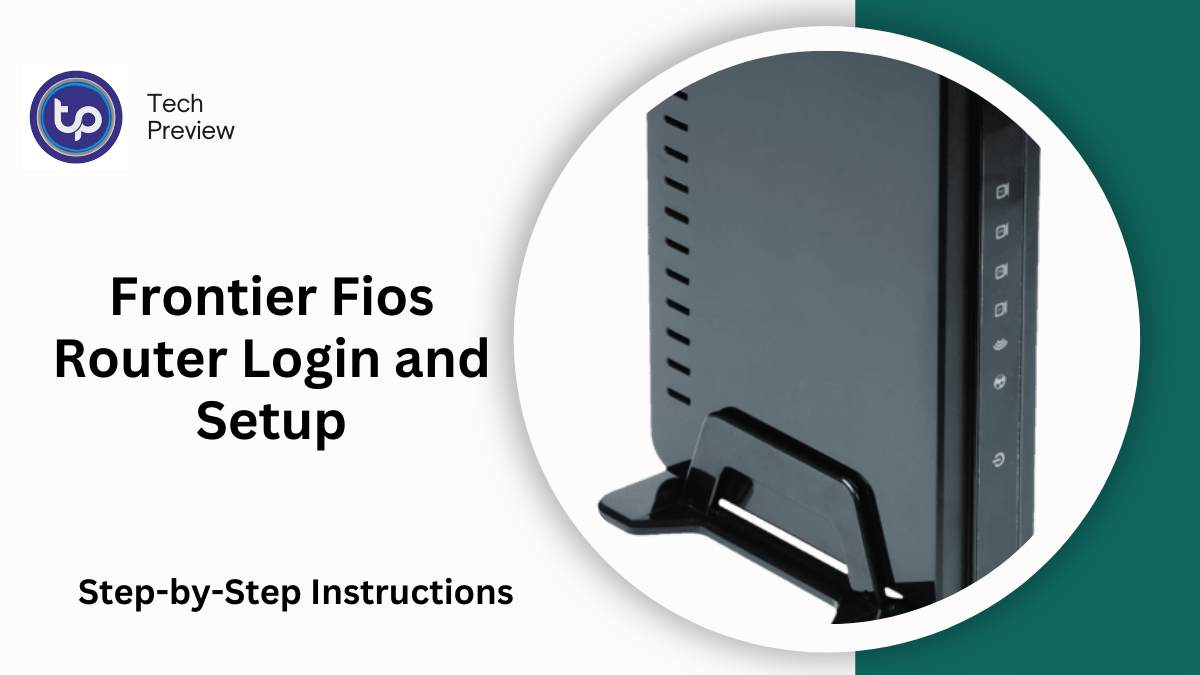
Accessing your Frontier Fios router allows you to adjust settings, secure your network, and manage your internet connection.
Whether you’re new to the system or facing difficulties logging in, this guide will walk you through every step of the process—from logging in to configuring settings and maintaining the router for optimal performance.
What You Need Before Logging In
To ensure a smooth login experience, you must have certain items prepared in advance. Here’s a checklist to help:
- Stable Internet Connection: A reliable internet connection is crucial. If you’re setting up a new service, make sure you choose a provider that offers high-speed internet. For existing connections, ensure the network is stable for efficient access.
- Device Compatibility: Ensure that your device (laptop, smartphone, tablet, etc.) is compatible with the internet connection. Check that it supports the necessary standards to connect to the router.
- Router’s IP Address: The default IP address is needed to access the admin page. You can locate it on the router’s label or refer to the user manual. The default addresses are typically 192.168.1.1 or 192.168.0.1.
- Default Login Credentials: You’ll need the username and password to log in. These are usually printed on the router’s back or included in the setup guide. If you’ve changed them previously and forgotten, you might need to reset your router.
MUST READ: HyperX Headsets: Best Models for Every Gamer
A Step-by-Step Guide to Log In to Your Frontier Fios Router
Now that you’re ready, here’s how to log into your Frontier Fios router:
1. Connect to the Network
Start by connecting your device to the Frontier network. You can do this either via Wi-Fi or by using an Ethernet cable. If you want a more stable connection, opt for the Ethernet cable method. If you’re using Wi-Fi, find the SSID (network name) on the back of your router and connect to it.
2. Launch a Web Browser
Once connected, open any web browser like Google Chrome, Mozilla Firefox, or Safari on your device.
3. Enter the Router’s IP Address
In your browser’s address bar, type in the router’s IP address. Most Frontier routers use 192.168.1.1 or 192.168.0.1, but you can check the router’s manual if you’re unsure.
4. Log in with Default Credentials
You will be prompted to enter the username and password. These default credentials are typically admin for both fields, but they might differ based on your router’s model. If you’ve changed the credentials and can’t remember them, you’ll need to perform a reset.
5. Access the Router’s Admin Page
Once successfully logged in, you will be directed to the admin interface. From here, you can modify network settings, update security configurations, and more.
6. Save Your Settings
After making changes, be sure to click Save or Apply to ensure the changes are stored.
7. Logout
Once you’ve finished your configuration, it’s important to log out to prevent unauthorized access. Simply click the Log Out button in the admin interface.
How to Configure Your Frontier Fios Router
Once logged in, configuring your Frontier Fios router to suit your needs is simple. Here are some key settings you might want to change:
1. Change Your Login Credentials
For enhanced security, it’s important to change your username and password from the default settings. Go to the Settings tab, select Change Username/Password, and enter your new credentials. Always choose a strong password to prevent unauthorized access.
2. Set Up Parental Controls
To manage how your network is used, enable Parental Controls. You can restrict access to certain websites or set time limits on specific devices.
3. Adjust Security Settings
Navigate to the Security tab in the settings menu to enable features such as firewall protection, WPA2 encryption, and protection against unauthorized access.
4. Update Router Firmware
Regularly updating your router’s firmware is essential for keeping it secure and functioning well. Go to the Firmware section, check for updates, and install any available updates.
5. Save Your Changes
Once you have configured the settings to your liking, click Save to apply the changes. These settings will then take effect immediately.
6. Logout Once Finished
For security reasons, always log out of the router’s admin panel once you’re done making changes.
Maintaining Your Frontier Fios Router
Proper maintenance ensures that your router continues to function optimally. Here are some tips:
- Ensure Proper Ventilation: Keep your router in a well-ventilated area to prevent overheating.
- Use Surge Protection: To avoid damage from electrical surges, use a surge protector.
- Handle with Care: Always handle your router carefully. Avoid dropping it or exposing it to moisture.
- Regular Cleaning: Dust can accumulate on the router. Use a dry, soft cloth to wipe it clean.
- Update Software: Periodically check for software updates to keep your router’s performance up to date.
Troubleshooting Login Issues
If you encounter problems logging into your Frontier Fios router, try these troubleshooting tips:
- Clear Browser Cache: Clear your browser’s cache and cookies if the login page isn’t loading correctly.
- Try a Different Browser: Switch to a different browser to see if that resolves the issue.
- Power Cycle the Router: Unplug the router for 10-15 seconds and plug it back in. This can help clear temporary connection issues.
Conclusion
Logging into your Frontier Fios router is a simple process, but it’s important to follow the correct steps to ensure smooth access and make necessary changes.
Once logged in, configuring your router settings, securing your network, and maintaining the device are essential steps in keeping your home internet running efficiently.
People May Ask
1. How do I find my Frontier Fios router login details?
Your router’s default username and password can be found on the label located on the back of your router or in the user manual. If you’ve changed them and forgotten, a reset will restore them to factory settings.
2. What is the default IP address for my Frontier Fios router?
The default IP address for most Frontier Fios routers is either 192.168.1.1 or 192.168.0.1. You can confirm this by checking the router’s label or the user manual.
3. What should I do if I can’t log in to my router?
If you can’t log in, clear your browser’s cache, try using a different browser, or power cycle the router by unplugging it for a few minutes.
4. How do I reset my Frontier router?
To reset your router, locate the reset button on the back of the router. Press and hold it for 10-15 seconds, then wait for the router to reboot and restore its default settings.
Click here to learn more.